


An employee portal can look great during a demo. But what happens when you start using it with your actual payroll system?
Maybe an approved timesheet doesn’t make it payroll.
An employee can’t find their paystub. Or someone changes departments, but their old manager keeps receiving their requests.
These might seem like small issues, but they can quickly turn into extra work for HR, payroll, and finance.
It’s worth testing how everything works together before employees start using the portal.
And you don’t need to make the process complicated.
Here are seven employee portal integration tests you can run to catch common problems before they affect your team.
First, Know Which System Handles What
Before you test anything, there’s one question worth answering:
Where does each piece of employee information actually come from?
Your company probably uses different systems for different tasks. Your HR system might manage employee records. Payroll software calculates wages and deductions. Your accounting or ERP system handles financial information.
The employee portal gives people a way to access information or complete tasks, but it doesn’t necessarily manage everything behind the scenes.
Here’s a quick breakdown:
| Information | What to Check |
| Employee records | Which system manages employee IDs, departments, and employment status? |
| Payroll details | Which system calculates wages, taxes, and deductions? |
| Timesheets | Where are hours recorded and approved? |
| Time-off balances | Which system tracks available for leave? |
| Job and project codes | Where are valid project codes maintained? |
| Paystubs | Which system creates the original payroll documents? |
Why does this matter?
Because if two systems are responsible for updating the same information, things can get messy.
For example, HR might update an employee’s department while the portal continues showing the old one.
Knowing which system holds the official record makes it easier to spot problems and fix them.
If you’re still figuring out how these systems should work together, our guide on what should and shouldn’t be managed in an employee portal is a useful place to start.
1. Check Whether Employee Records Match
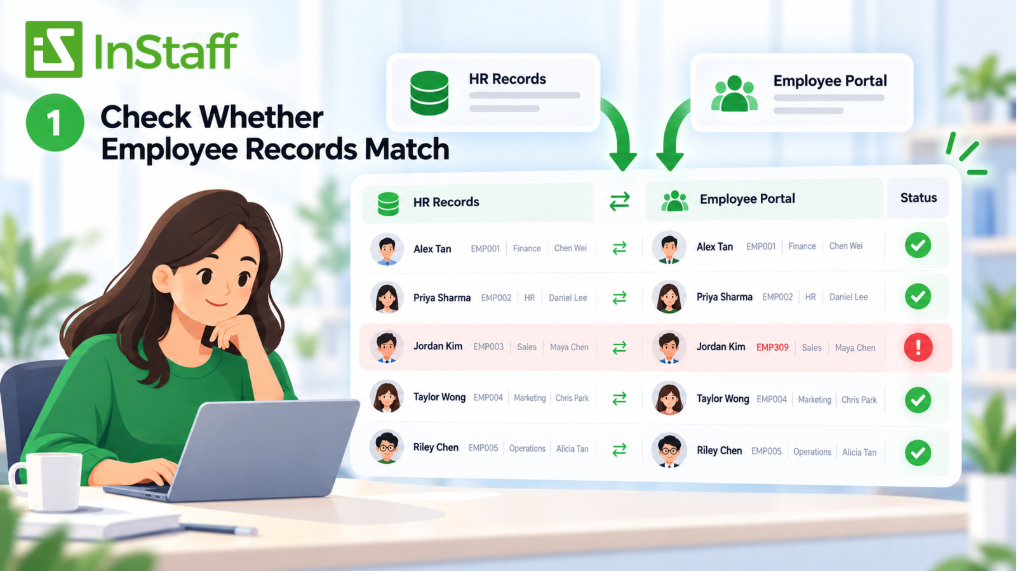
Let’s start with something basic: making sure employee information is correct. Your employee portal may need details like names, employee IDs, departments, managers, and employment status.
The problem is that those details don’t always match across systems.
Someone might have changed their last name. Two employees could have similar names. Or an employee ID might have been entered incorrectly. If the portal matches the wrong records, that can lead to access problems or information appearing in the wrong account.
How to test it
Import a small group of employee records from your HR or payroll system. Include a mix of active employees, inactive employees, and people with similar names. You can also add a record with an incorrect or duplicate employee ID.
Then check the accounts created in the portal.
Did everything match correctly? Were any records skipped? Did the system flag information it couldn’t identify?
Don’t rely only on a message saying the import was successful. Open a few employee profiles and check the actual details.
- What you want to see: Every valid record matches the correct employee, and anything missing or incorrect is flagged for review.
2. See What Happens When Employee Details Change
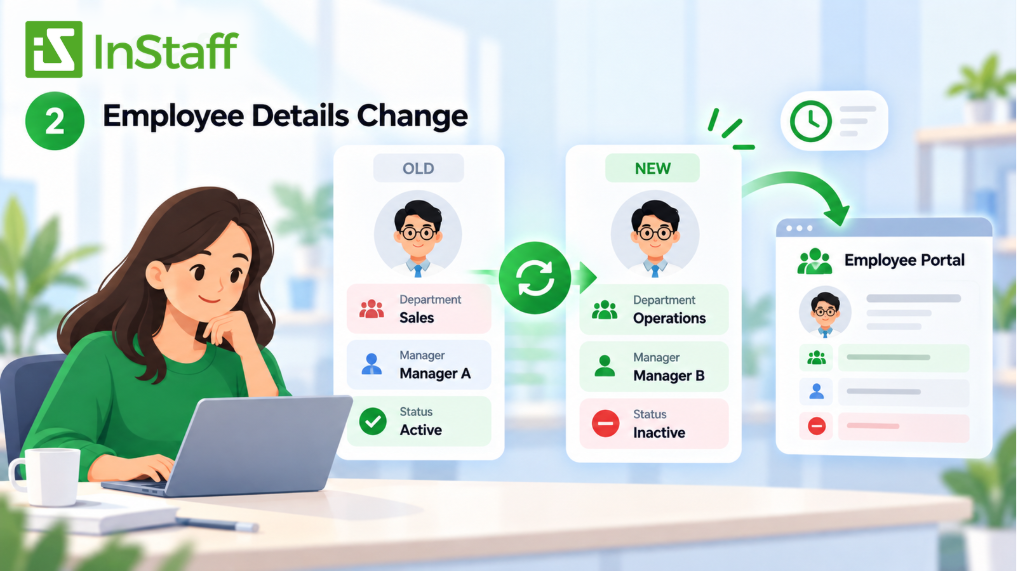
Employee information doesn’t stay the same forever. People get hired, move to different departments, change managers, and leave the company.
Your employee portal needs to be kept up. Imagine an employee moving from the sales team to operations. They now report to a different manager, and their access to certain documents might need to be changed. But if the portal still has their old information, their requests could keep going to the wrong person.
That’s frustrating for everyone involved.
How to test it
Create a test employee account and make a few changes. Start by assigning a new department and manager. Then update the employee’s employment status or deactivate the account.
Watch what happens in the portal.
Do those changes show up automatically? Does someone need to update them manually? How long does it take?
Some systems update information immediately, while others use scheduled imports. Neither approach is automatically wrong. What matters is knowing when changes take effect and whether that timing works for your team.
- What you want to see: Employee updates reach the right systems, and your team knows how to handle delays or changes that don’t go through.
For more context, our HRIS vs. employee portal guide explains how these systems can handle different parts of the employee experience.
3. Make Sure Paystubs Go to the Right Employees
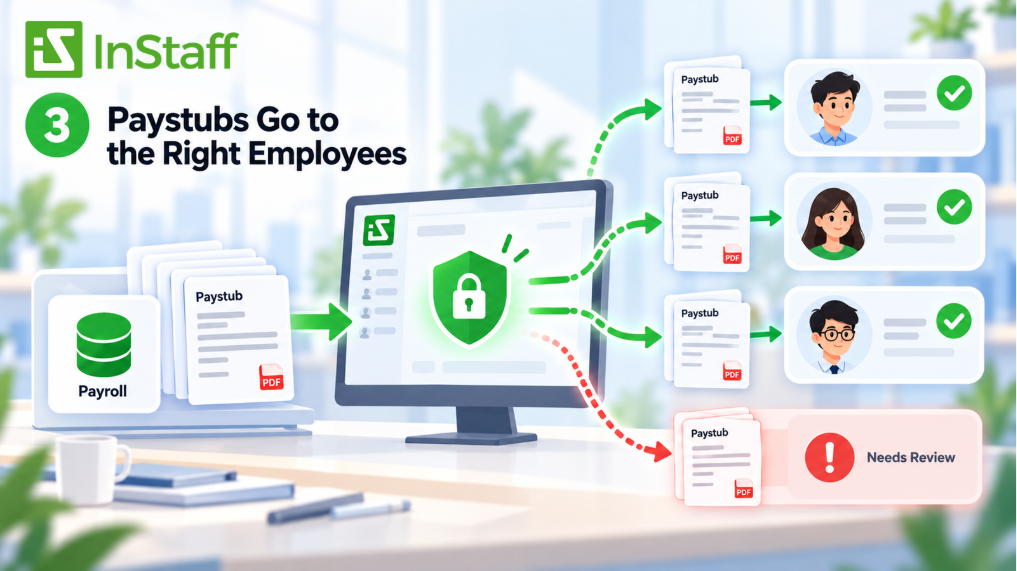
This is one area where you really don’t want mistakes. Your payroll system might generate one PDF containing everyone’s paystubs or create separate files for each employee. Either way, the portal needs to match each document to the correct person. And just because employee records imported successfully doesn’t mean paystubs will automatically be assigned correctly.
How to test it
Use sample paystubs in the same format your payroll team normally works with. Upload a few documents and include one with missing or incorrect employee information.
Then log in using different employee test accounts.
Can each person find their own paystub? Can they see anyone else’s documents? What happens to a file the portal can’t match? You should also try uploading a corrected paystub to see how replacements are handled.
- What you want to see: Employees can only access their own payroll documents, and unmatched files are held for review rather than being assigned to the wrong person.
This is also a good time to review access permissions. The NIST security and privacy control guidelines provide a useful reference for limiting access to sensitive information.
Getting these right matters beyond the initial upload. Once documents are available, employees should be able to retrieve them without asking payroll to resend copies. Our article on paystub self-service vs. email distribution covers that difference in more detail.
4. Check Whether Approved Timesheets Reach Payroll Correctly
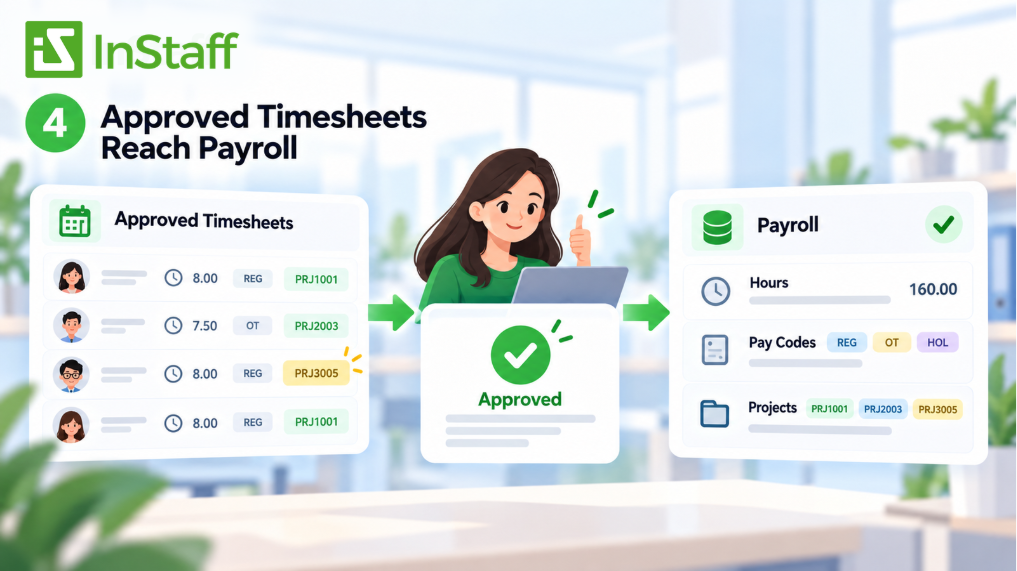
Recording employee hours is one thing. Getting those hours into payroll correctly is another. Let’s say an employee works 40 hours a week. Their timesheet looks fine, and their manager approves it. But when payroll receives the information, a project code is missing, or the hours are assigned to the wrong pay code.
Now someone must go back, figure out what happened, and fix the record. That’s exactly the kind of extra work integration is supposed to be reduced.
How to test it
Create a sample pay period using a few situations your team regularly handles.
For example, include an employee with regular hours, someone who needs to correct a missed punch, and someone who worked on two different projects.
Approve the timesheets and check what reaches payroll.
Is the employee’s IDs correct? Do the hours and dates match? Are the pay codes and project details included?
You’ll also want to know which system handles overtime, rounding, and breaking calculations.
If both systems apply those rules independently, you could end up with different totals.
- What you want to see: Payroll receives the correct approved hours and codes, without someone needing to re-enter or rebuild the timesheet.
For companies tracking labor costs by project, this is especially important. Our guide to job costing software for time tracking explains how approved hours and job codes need to work together.
5. Make Sure Time-Off Balances Are Accurate
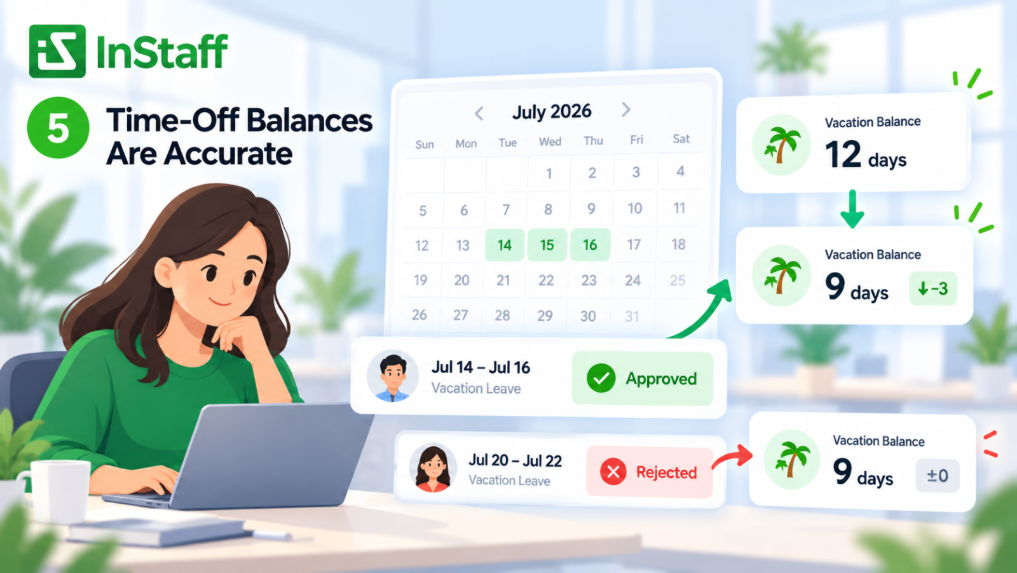
Imagine an employee opening the portal and see they have six vacation days left.
But HR’s records show only four.
Which number should they trust?
That’s a problem you want to catch before someone requests time off based on the wrong balance.
Time-off tracking can become confusing when the portal and HR or payroll system don’t update information the same way.
And different types of leave may follow different rules.
How to test it
Start with an employee who has an available vacation balance. Then, submit a time-off request and approve it. Submit another request and reject it. Check what happens to the balance after each action.
Or, you can also try adjusting the employee’s available days manually, if your setup allows it.
Does the new balance appear correctly? Does the rejected request leave the available balance unchanged?
And if another system manages the official balance, does it receive the right information?
- What you want to see: Employees see accurate available balances, and approvals, rejections, and adjustments follow your company’s leave rules.
One thing to keep in mind: a portal showing time-off balances doesn’t always mean it’s the system responsible for maintaining them.
That responsibility should be clear before you launch.
6. Check Whether Expense Reports Reach Finance with the Right Details
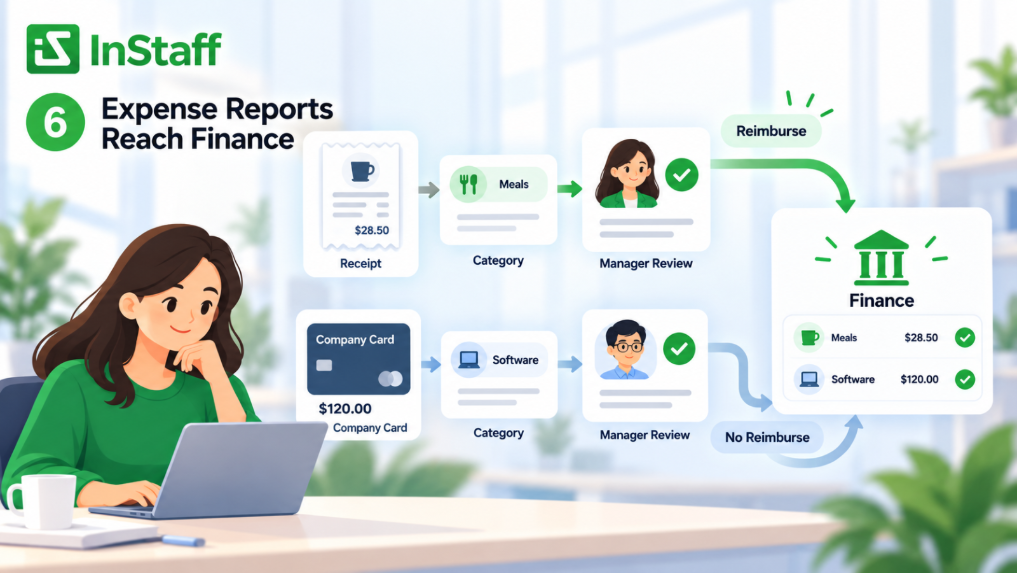
Expense reports might seem to separate from payroll, but they often end up in the same group of business systems. Depending on your process, approved expenses may go to payroll, accounts payable, or accounting.
And it’s not just the amount that matters.
Finance also needs to know what the expense was for, who approved it, and whether the employee needs to be reimbursed. For example, an employee might pay for parking using their own money.
Another employee might book a hotel using a company credit card.
Both are business expenses, but only one may need reimbursement.
If that distinction gets lost during an export, finance has another problem to sort out.
How to test it
Create two expense reports. For the first, use an expense the employee paid for personally. For the second, use something paid with a company card. Add receipts, choose expense categories, and submit both reports. Have a manager return one report for correction before approving it.
Then check the information sent to finance.
Are the amounts correct? Are the expense categories included? Can finance clearly tell which expense needs reimbursement?
- What you want to see: Approved expenses reach finance with the information needed to process them, without confusing company-paid costs with money owed to employees.
If you’re reviewing this part of your workflow, our guide to employee expense management from submission to accounting explains what should happen between an employee submitting a receipt and finance processing the expense.
7. Find Out What Happens When Something Goes Wrong
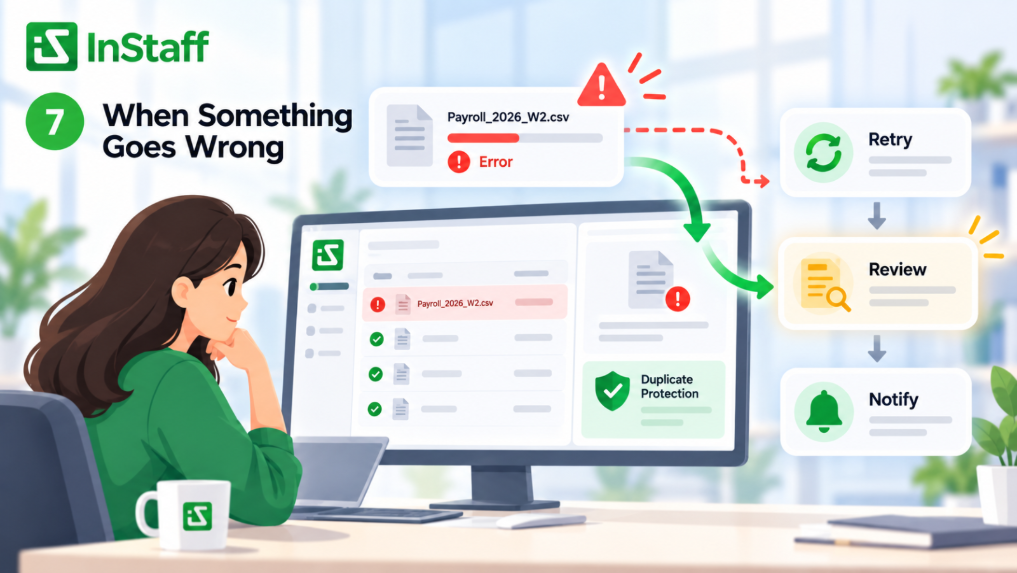
It’s easy to test a system when everything works perfectly. But real work isn’t always that predictable. Someone uploads the wrong file. An employee ID is missing. A data transfer fails. Or an administrator needs to correct something and try again. What happens next matters just as much as the successful process. You don’t want your payroll team spending hours figuring out why information disappeared or whether the same transaction was processed twice.
How to test it
Try uploading a file with missing information or an invalid employee ID. Then look at how the portal handles the error.
Can an administrator tell me what went wrong? Is the original information still available? Can the problem be fixed without starting everything over?
Also check what happens when a transfer is interrupted.
Can it be safely retried? Is there a risk of duplicate records?
Not every failed transfer should simply be retried. Microsoft’s guidance on handling temporary system failures explains why systems need to distinguish problems that can be retried from those that need correction.
Finally, think about timing.
If a transfer fails right before payroll is due, who gets notified? Who fixes it? And what’s the backup plan?
- What you want to see: Errors are easy to identify, failed transfers can be handled safely, and your team knows what to do when something doesn’t work.
How to Know When Your Employee Portal Is Ready to Launch
Once you’ve finished testing, don’t just mark everything as done and move on. Take a look at the results with the people who will actually use or manage the system.
That usually means someone from HR, payroll, finance, and IT.
For each test, keep track of four things:
- What was supposed to happen
- What happened
- What still needs to be fixed
- Who’s responsible for fixing it
If a test fails, make the necessary changes and run it again. It’s also worth having someone monitor the first live transfers after launch.
For example, after your first payroll cycle, compare a sample of approved timesheets, payroll records, and employee documents to confirm everything ended up where it should.
And make sure employees know where to report problems.
If someone can’t find their paystub or notices incorrect information, they shouldn’t have to guess who to contact. You don’t have to launch every feature on the same day, either.
If paystub access is ready but your time tracking integration still needs to work, a phased rollout might make more sense.
Where Does InStaff Fit into Your Existing Systems?
If your company already has payroll, accounting, HR, or ERP software, adding an employee portal doesn’t necessarily mean replacing those systems. InStaff is built to work alongside existing business software, helping employees handle everyday tasks while your current systems continue doing their jobs.
Depending on your setup, that can include distributing paystubs, collecting and approving timesheets, managing time-off requests, and handling employee expenses.
Different tasks may use different ways of moving information.
For example, paystubs can be distributed using compatible payroll PDF files. Approved time and expense information can be exported for other systems. Other supported connections depend on the module and software involved.
That’s why it’s important to review your actual workflow instead of assuming every feature connects in the same way. If you’re evaluating InStaff or another employee portal, bring real examples to the demo.
Show how your payroll files are formatted, how your managers approve requests, and what information your other systems need. You’ll get a much clearer picture of how the portal would fit into your day-to-day process.
Our employee portal features guide can also help you decide which capabilities matter most for your team.
Frequently Asked Questions
Does an employee portal need to connect directly to payroll?
Not always. Some companies use scheduled imports, file exports, or payroll document uploads instead of a live connection. What matters is that information moves correctly, reaches the right system on time, and can be checked when something goes wrong.
What’s the biggest challenge with employee portal integration?
A common challenge is having the same information managed in different places. For example, HR might update an employee’s department while payroll or the portal still shows the old one. Deciding which system maintains each record helps avoid confusion.
Can integration testing prevent all payroll errors?
No, but it can help catch problems before they become part of your regular workflow. Testing can uncover incorrect employee matches, missing data, failed transfers, and access issues. You’ll still need your usual payroll checks for calculations, approvals, and employee records.
Do you need to test again after launching?
Yes, especially when you change integration, update employee access rules, or introduce a new workflow. Something that worked during the original setup may behave differently after a configuration change. Running a few targeted tests can help catch those issues early.
A Better Employee Portal Starts with Better Handoffs
An employee portal should make work easier for everyone, not create another place where information needs to be checked and corrected. That’s why it’s worth looking beyond the features you see during a demo. Test what happens when employee details change. Check whether approved hours reach payroll correctly. Make sure documents go to the right people. And find out how the system handles errors.
These are the everyday situations that tell you whether an employee portal will actually work for your team. If you’re exploring how an employee portal could fit into your current payroll and HR setup, you can learn more about the available options at InStaff.


